Menno - Face Settings
M. Avatar Setting allows you to finely adjust the facial expressions and blend shapes of the Menno avatar.
Configuration Method
- Open the M. Avatar Setting window
- Select the Menno avatar
- Expand the “Face Settings” section
Basic Settings
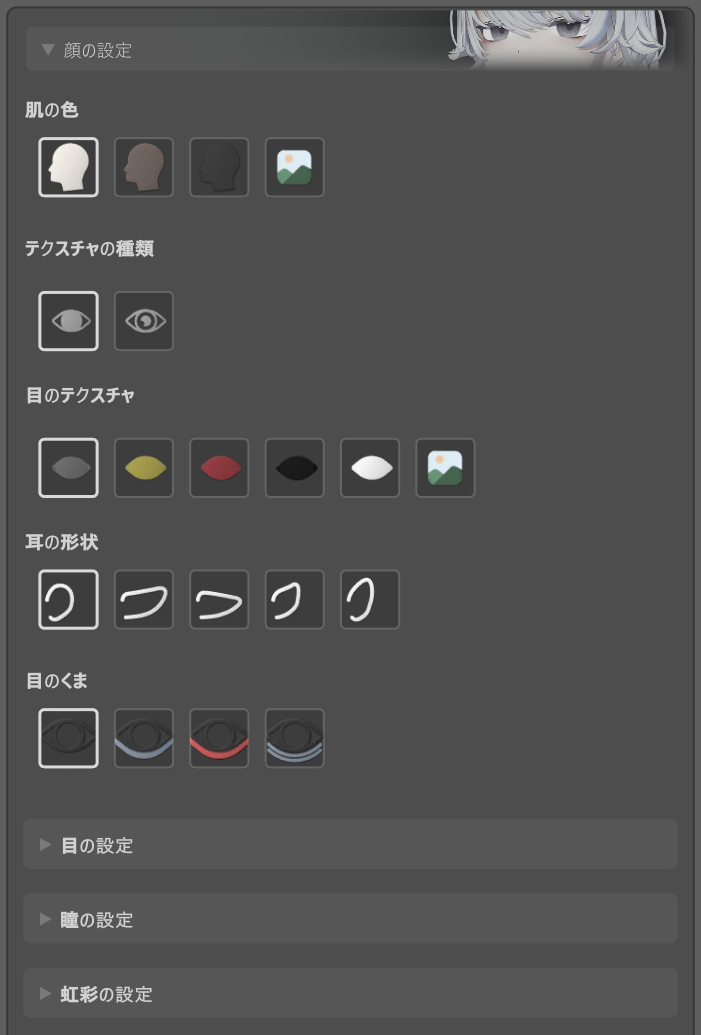
Skin Color
You can select from the following 3 types of skin color for the Menno avatar:
- Standard Color - Default skin color
- Tan - Slightly darker skin color
- Gray - Gray skin color
- Custom - Press the custom button to freely set face texture and body base texture
Texture Type
You can select the eye texture type:
- Narrow Eyes - Menno’s eye texture
- Round Eyes - Emmelie’s eye texture
Eye Texture
You can select from the following eye colors:
- Standard Color - Default eye color
- Yellow - Yellow eyes
- Red - Red eyes
- Black - Black eyes
- White - White eyes
- Custom - Press the custom button to freely set eye texture (texture type selection will be disabled)
Ear Shape
You can select from the following ear shapes:
- Standard - Default ears
- Elf 1 - Elf ear type 1
- Elf 2 - Elf ear type 2
- Elf 3 - Elf ear type 3
- Elf 4 - Elf ear type 4
Eye Bags
You can set the display of bags under the eyes:
- None - No eye bags
- Black Bags - Black eye bags
- Red Bags - Red eye bags
- Bag Lines - Bag line type
Blend Shape Categories
Face settings are classified into the following categories:
Eyes (EYE)
You can adjust the size and shape of the eyes. You can set the size of the pupils, the degree of eye opening, and the direction of gaze.
Main settings:
- Eye opening
- Eye size
- Pupil size
- Gaze direction (up, down, left, right)
Eyebrows (EYEBROW)
You can adjust the shape and position of the eyebrows. Various emotional expressions are possible, such as angry or surprised expressions.
Main settings:
- Eyebrow vertical position
- Eyebrow angle
- Eyebrow thickness
Eyelashes (EYELASH)
You can adjust the length and angle of the eyelashes.
Main settings:
- Eyelash length
- Eyelash angle
- Eyelash density
Mouth (MOUTH)
You can adjust the shape and degree of opening of the mouth. You can create expressions such as smiles, surprise, and anger.
Main settings:
- Degree of mouth opening
- Vertical position of mouth corners
- Mouth width
- Lip thickness
Nose (NOSE)
You can adjust the shape and size of the nose.
Main settings:
- Nose height
- Nose width
- Nostril shape
Ears (EAR)
You can adjust the angle and shape of the ears.
Main settings:
- Ear size
- Ear angle
- Elf ear shape (when elf ears are selected)
Jaw (JAW)
You can adjust the position and shape of the jaw.
Main settings:
- Jaw length
- Jaw width
- Jaw point
Teeth (TEETH)
You can adjust the visibility of the teeth.
Main settings:
- Degree of teeth exposure
- Teeth shape
Operation Method
When you expand each category, sliders for the blend shapes belonging to that category will be displayed. You can adjust the shape of the corresponding part by moving the slider.
Face Shape Key Preset Feature
A feature that allows you to save your favorite blend shape settings and easily recall them anytime.
Main Features
- Save Presets: Save current blend shape settings with a name
- Apply Presets: Apply saved presets with intensity adjustment
- Blend Presets: Apply multiple presets simultaneously to create new expressions
- Share Presets: Use preset files in other projects
For detailed usage, please refer to the following guides:
- 🎭Face Blend Shape Preset (Quick Start) - Basic usage
- 🎭Face Shape Key Preset (Detailed Guide) - Advanced usage and technical details
- 🎭Face Shape Key Preset Distribution Guide - Guide on distributing presets
Resetting Settings
If you want to reset all face settings to their initial state, click the “Reset” button. A confirmation dialog will be displayed, and if you select “Yes”, the settings will be reset.
Notes
- Face settings are applied only to the Menno avatar
- Some blend shapes may interfere with other blend shapes. If unexpected results occur, check other related settings
Language Settings
You can switch between Japanese and English with the language switch button in the upper right of M. Avatar Setting. The names of the blend shapes will also switch accordingly.