Face Shape Key Preset Feature - Detailed Guide
This guide provides detailed information about M. Avatar Setting’s blend shape preset feature.
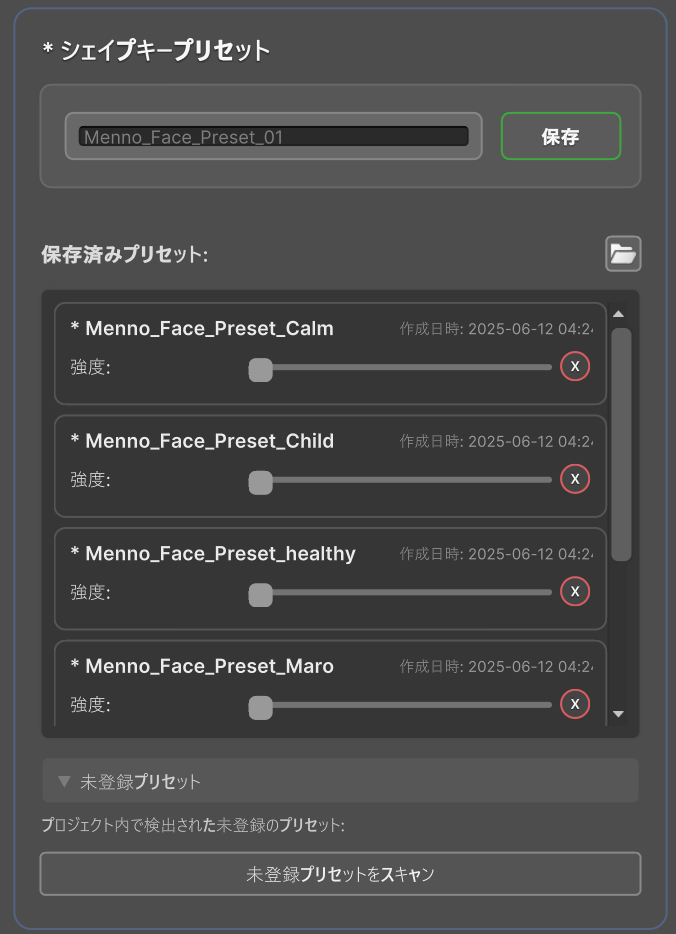
Preset System Overview
The facial preset feature is a system for saving and managing Menno avatar’s face blend shape settings.
Key Features
- Non-destructive Editing: Applying presets doesn’t completely overwrite current settings, you can adjust the intensity
- Layer Blending: Apply multiple presets simultaneously to create complex expressions
- Real-time Preview: See changes immediately
- Project Sharing: Copy preset files to use in other projects
Preset Data Structure
Saved Data
Presets save the following information:
- Preset Name: User-defined identifier
- Blend Shape Values: Each blend shape value (0.0 to 1.0)
- Creation Date: When the preset was created
File Format
Presets are saved as .asset files.
Save Location
Preset files are saved in the following directory:
Assets/emudotto/Menno/Resources/Face_Presets/
Advanced Usage
Preset Blending
How values are calculated when applying multiple presets:
- Additive Blending: Values from each preset are added
- Example: Preset A (smile: 0.5) + Preset B (smile: 0.3) = smile: 0.8
- Maximum Value Limit: Blend shape values do not exceed 1.0
- Example: 0.7 + 0.6 = 1.0 (not 1.3)
Preset Priority
- Later applied presets take priority
- Presets with 0% intensity are ignored
- Real-time changed values have highest priority
Troubleshooting
Common Issues and Solutions
Presets Not Saving
- Cause: No file write permissions
- Solution: Check Unity project folder permissions
Presets Not Applying
- Cause: Blend shape names have changed
- Solution: Recreate the preset or manually edit the .asset file
Preset Intensity Not Working
- Cause: Other scripts are controlling blend shapes
- Solution: Disable conflicting scripts or adjust execution order
Sharing Presets
Export Method
- Open the
Face_Presetsfolder in the Project window - Select the preset files you want to share
- Right-click and select “Export Package”
Import Method
- Drag and drop the received preset files into your project
- Place in the
Face_Presetsfolder (if the export folder was “Face_Presets”, it will be automatically placed on import) - Reopen the M. Avatar Setting window
Best Practices
Future Extensions
- Preset category feature
- Preset favorites feature
- Preview image feature for presets