Menno - Item Settings
M. Avatar Setting allows you to configure costumes, accessories, and other items for the Menno avatar.
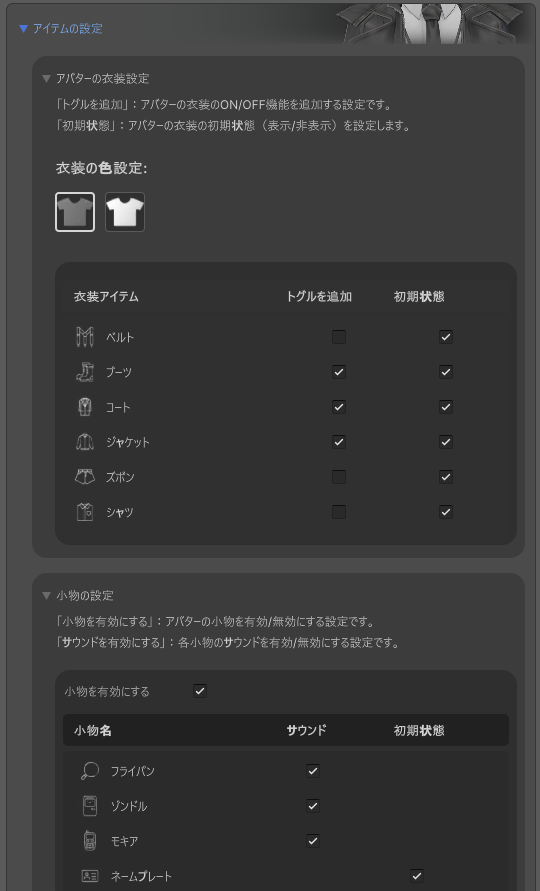
Costume Settings
With the Menno avatar, you can switch between multiple costumes.
Costume Selection
- Open the M. Avatar Setting window
- Select the Menno avatar
- Expand the “Costume Settings” section
- Check the checkbox next to the costume you want to use
Initial State of Costumes
Each costume has an “Initial State” setting. When enabled, that costume will be displayed when the avatar is loaded. You can enable the initial state for multiple costumes.
Changing Costume Color
Buttons are also provided to change the color of the costumes:
- Standard Color - Default costume color
- White - White version of the costume
Clicking a button will change the color of all costumes.
Toggle Item Settings
The Menno avatar includes special items (toggle props) that can be toggled in VRChat.
Available Toggle Items
- Pan - Frying pan
- Xondle - Xondle
- Mokia - Mobile phone
Toggle Item Settings
Each toggle item has the following settings:
- Enable/Disable - Whether to use the item
- Sound Effect - Whether to play a sound effect when toggling the item
- Initial State - Whether to display the item when the avatar is loaded
Resetting Settings
If you want to reset all costume and toggle item settings to their initial state, click the “Reset” button. A confirmation dialog will be displayed, and if you select “Yes”, the settings will be reset.
Technical Details
- Costume prefabs are loaded from
Assets/emudotto/Menno/Animation/ModularAvatar/Costume - Toggle prop prefabs are loaded from
Assets/emudotto/Menno/Prefab/ToggleProps.prefab - Costume materials are managed by
Assets/emudotto/Menno/Materials/Menno_Wear.mat
Language Settings
You can switch between Japanese and English with the language switch button in the upper right of M. Avatar Setting. Item names and descriptions will also switch accordingly.