Face Settings
Change the appearance of skin, eyes, and ears, as well as facial shapes (blend shapes).
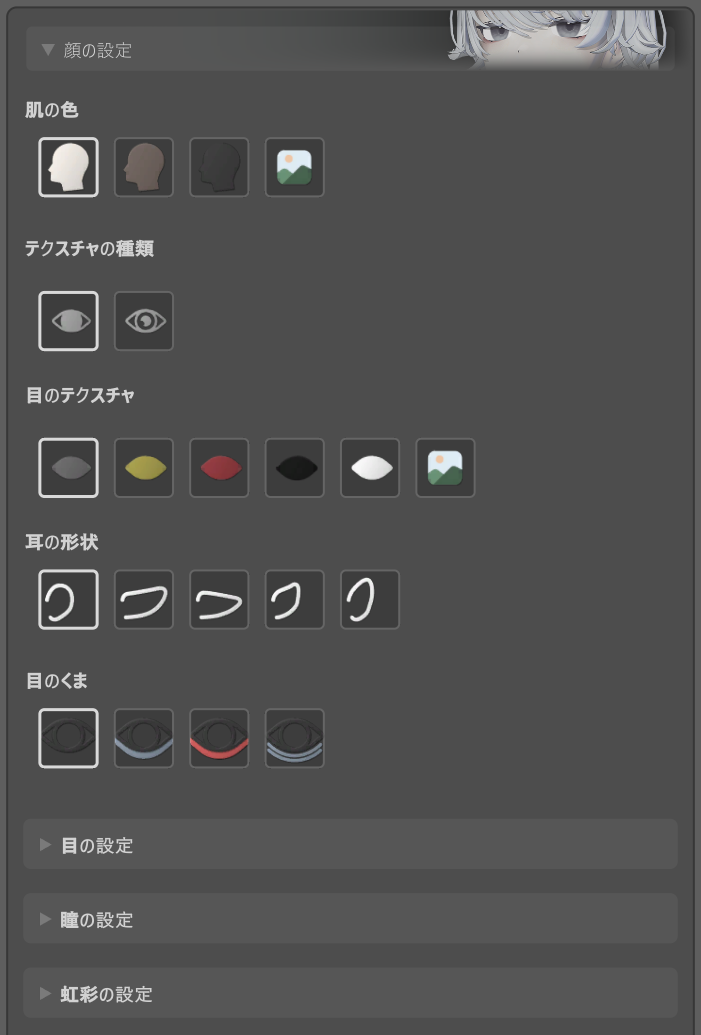
Usage
- Open the M. Avatar Setting window
- Select a Menno avatar
- Expand the "Face Settings" section
- Select an item or expand a category and move the sliders
Basic Settings
| Item | Option | Notes |
|---|---|---|
| Skin Color | Standard / Tan / Gray / Custom | Custom allows free configuration of face and body base textures. |
| Texture Type | Fine / Round | Fine uses Menno's eye texture, Round uses Emmelie's. |
| Eye Texture | Standard / Yellow / Red / Black / White / Custom | Custom allows free configuration of the eye texture (texture type will be disabled). |
| Ear Shape | Standard / Elf 1 / Elf 2 / Elf 3 / Elf 4 | |
| Eye Bags | None / Dark bags / Red bags / Lines | Under-eye dark circles/shadows. |
Blend Shapes
Expand a category to reveal the sliders.
| Category | Main Items |
|---|---|
| Eyes (EYE) | Eye openness, eye size, pupil size, gaze direction (up/down/left/right) |
| Eyebrows (EYEBROW) | Vertical position, angle, thickness |
| Eyelashes (EYELASH) | Length, angle, density |
| Mouth (MOUTH) | Opening degree, corner lift/lower, width, lip thickness |
| Nose (NOSE) | Bridge height, width, nostril shape |
| Ears (EAR) | Ear size, ear angle, elf ear shape (when Elf ears selected) |
| Jaw (JAW) | Chin length, chin width, pointedness |
| Teeth (TEETH) | Tooth visibility, tooth shape |
Blend shape names switch between Japanese and English according to the language toggle button in the top-right corner of the window.
Note
- Face settings apply only to Menno avatars.
- Blend shapes may interfere with each other. If you get unexpected results, check related settings as well.
Face Shape Key Presets
Save your current blend shape settings with a name and apply them while adjusting intensity. You can also combine multiple presets simultaneously or use preset files in other projects.
- Quick Start - Basic usage
- Detailed Guide - Advanced usage
- Distribution Guide - Distributing presets
Reset
Press the "Reset" button and select "Yes" in the confirmation dialog to restore all face settings to their default state.